Dacia Spring

From the main menu, press
 or
or
 to browse to the "Settings" world.
The following settings are available:
- « Vehicle » ;
- « Audio » ;
- « Phone ».
warning
For safety reasons, carry out any adjustments while the vehicle is stationary.
Audio settings
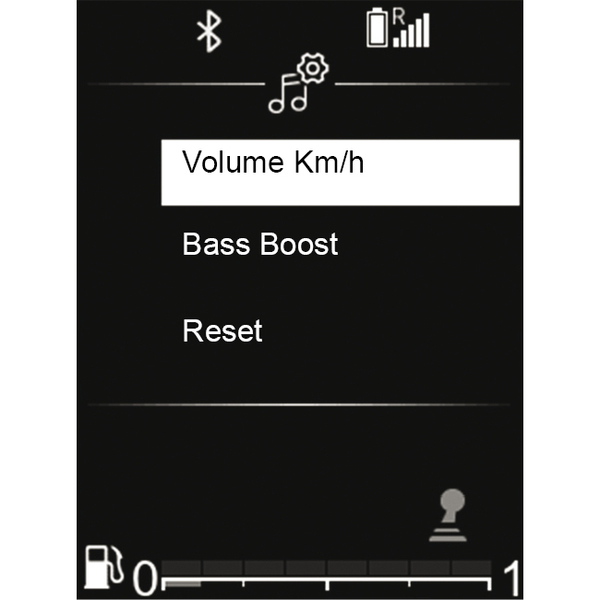
From the main menu, use
or
to browse to the "Settings" world, then select "Audio".
Select "Audio settings", then
 to confirm.
The following settings are available:
- "Equaliser";
- "Spatialisation";
- "Volume mph (km/h)";
- « Bass boost » ;
- "Reset".
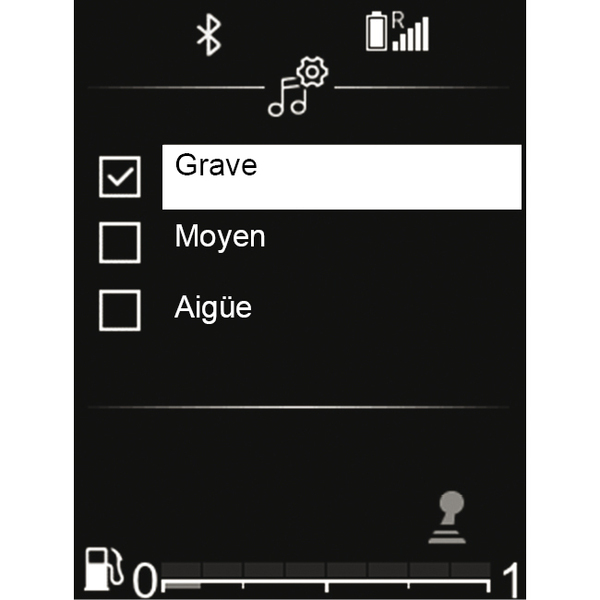
"Equaliser"
Select "Equaliser", then press
or
to access the various items in the following order:
- « Bass » ;
- « Middle » ;
- « Treble ».
"Spatialisation" (sound distribution)
The "Spatialisation" function to adjust the sound distribution in the passenger compartment:
- "Balance" (left/right sound distribution);
- depending on the vehicle; "Fader" (front/rear sound distribution).
You can change the value of each setting by pressing or .
Press
to confirm and return to the previous selection.
"Volume sensitive to speed"
The volume of the audio system varies in relation to the vehicle speed.
Access the "Audio settings" menu then select "Volume mph (km/h)" by pressing
.
To reach the desired setting, select one of the following:
- « OFF » ;
- "Very low";
- « Low » ;
- « Middle » ;
- "High";
- « Very high ».
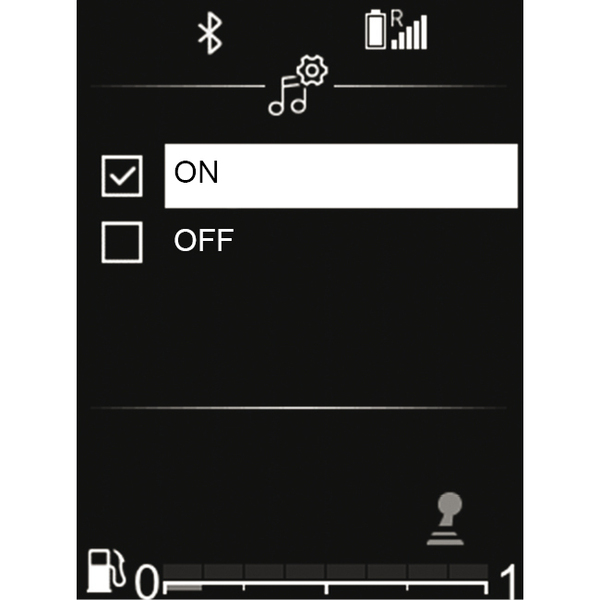
« Bass boost »
The "Bass boost" function can be used to increase the bass when listening at low volume.
Access the "Audio settings" menu, then select "Bass boost" using or , then to confirm.
To activate/deactivate this function, select "ON" or "OFF" using or , then to confirm.
"Default audio"
Display the "Audio settings" and select "Default" then "Reset".
Select "YES" or "NO".
All the audio settings return to their default values.
tip
Press the
 button to return the previous menu.
Radio settings
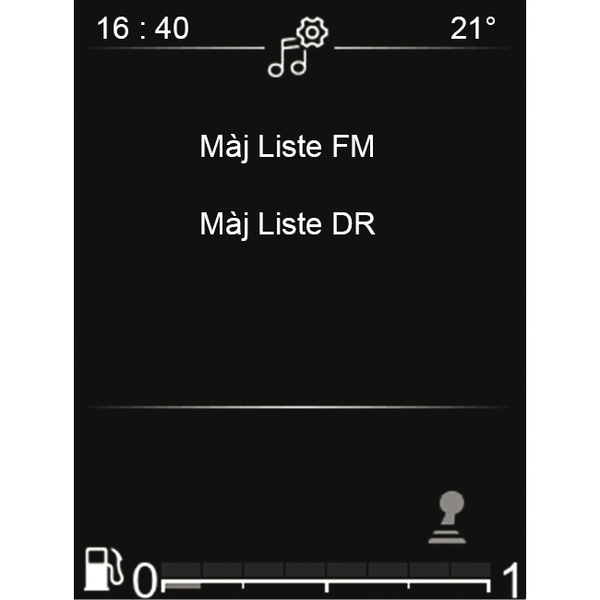
Display the settings menu by pressing briefly on
 , select the "Settings" world, then "Audio settings" by pressing
or , then to confirm.
, select the "Settings" world, then "Audio settings" by pressing
or , then to confirm.
The available functions are as follows:
- "Update FM list";
- "Update DR list";
- "Simulcast";
- "Priority to DR";
- « TA » ;
- « AF ».
"Update the "FM" list
This feature allows you to perform an update of all FM stations in the area where you are located.
From the "Settings world", select the "Radio settings" menu and then "Update FM list" by pressing or , then to confirm.
Automatic updating of the FM stations in the area will begin. The "Update FM list" message is displayed on the instrument panel.
Once the update is complete, the "FM list updated" message is displayed on the screen.
"Update the "DR" list
This feature allows you to perform an update of all DR stations in the area where you are located.
From the "Radio settings" menu, select "Update DR list" by pressing or , then to confirm.
Automatic updating of the DR stations in the area will begin. The "Update DR list" message is displayed on the instrument panel.
Once the update is complete, the "DR list updated" message is displayed on the screen.
Note: if another source is selected with
 , the FM or DR list continues to be updated in the background.
"Simulcast"
Depending on the country, this function switches from a DR station to the equivalent FM station if the digital signal is lost.
If the "FM/DR simulcast" is activated, there may be lag of a few seconds when switching from FM to DR or from DR to FM. A change in volume may occur.
The system will automatically switch back to DR as soon as the digital signal is received.
Note: during the simulcast, the station name is preceded by " FM> »
"Priority to DR"
Depending on the country, this function allows you to select an FM station (if the radio station requested is also available in digital) and switch to the equivalent DR station to obtain better sound quality.
Note: while DR is prioritised, the station name is preceded by " DR> ».
« TA »
When this feature is activated, your audio system searches for and automatically plays traffic bulletins as new reports are broadcast by some "FM" or "DR" radio stations.
To activate or deactivate this function:
- from the "Settings" world, select "Radio settings" settings" by pressing
 on the steering column, then
to confirm;
on the steering column, then
to confirm; - select "TA" by pressing
on the steering column, then to confirm;
- select "ON" or "OFF" to activate or deactivate the "TA" function.
"AF" (automatic retuning AF)
The frequency of an FM station changes according to the geographical area.
Some stations use the RDS system, mainly for automatic retuning of "AF" while the vehicle is moving.
Phone Settings
Use this function to adjust the settings of the telephone connected to the audio system.
From the main menu, browse by pressing or until you reach the "Settings" world. Select "Phone settings", then press to confirm.
The following settings are available:
- "Search a phone";
- "Pair a phone";
- "Select a phone";
- "Delete a phone";
- "BT ON/OFF".
Please refer to the corresponding sections.
tip
Press once on button
to return to the previous menu.
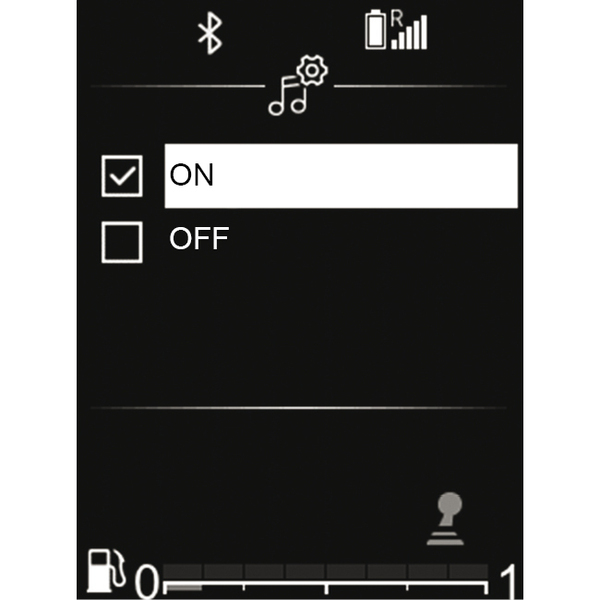
"BT settings" (Bluetooth®)
From the main menu, browse by pressing or until you reach the "Settings" world. Select "BT settings", then to confirm.
To activate the Bluetooth® audio system, select "ON" by pressing or , then to confirm.
To deactivate the audio system Bluetooth®, select "OFF" by pressing or , then to confirm.
Selecting a language
Use this function to change the audio system display language on the instrument panel.
Display the settings menu by pressing
. Select "Vehicle Settings", "Language" and then choose the desired language by pressing or by pressing to confirm.
Setting the time
This function allows you to set the time.
Display the settings menu by pressing
. Select "Vehicle menu", then "Clock" using or and press to confirm.
The "Clock" menu is displayed:
- press and hold to access the Hours setting;
- adjust the hour by pressing or , then wait for a moment until the selection automatically switches from the hour setting to the minute setting;
- set the minutes by pressing or , then wait for a moment until the setting is automatically confirmed.
tip
Depending on the brand and model of your telephone, the hands-free functions may be partially or fully incompatible with your vehicle's audio system.
warning
For safety reasons, carry out any adjustments while the vehicle is stationary.