Dacia Spring
Bluetooth® connection
To activate the audio system's Bluetooth® function:
- press
 to access the main menu;
 - select the "Settings" world then the "Phone settings" menu followed by "Bluetooth®" using the
 or
or
 then
then
 to confirm;
 - select "YES" using
or
, then confirm by pressing
. The Bluetooth® symbol will then appear continuously in the status bar
 on the screen.
warning
For safety reasons, carry out these operations when the vehicle is stationary.
Pairing a phone
To use your hands-free system, pair your Bluetooth® mobile phone with the vehicle. Check that the your phone's Bluetooth® function is activated and set its status to "visible".
Pairing will enable the hands-free phone system to recognise and store a phone.
You can pair up to six phones, but only one can be connected at a time.
Pairing can be performed either via the audio system or via your phone.
Your audio system and phone must both be switched on.
Note: if you pair a new phone while another phone is already connected to the audio system, it will be disconnected and replaced by the new paired phone.
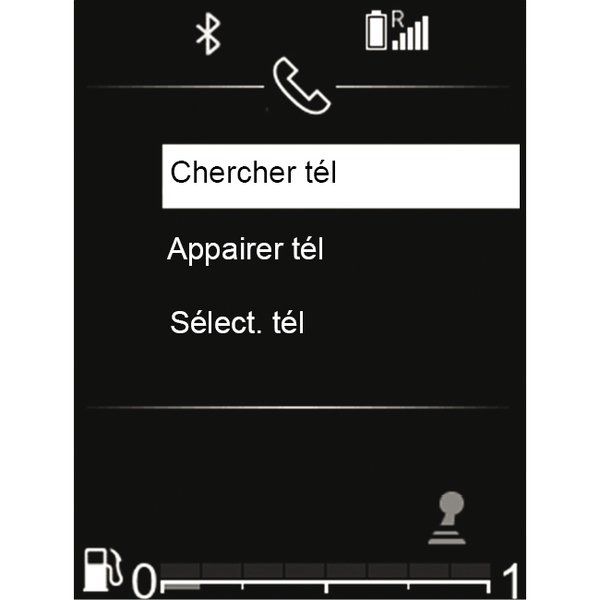
Pairing a Bluetooth® phone with the audio system via the audio system
This method allows you to make a Bluetooth® search from the audio system.
To pair a phone, carry out the following operations:
- activate Bluetooth®;
- press
to access the main menu;
- select the "Settings" world, then the "Phone settings" menu using
or
then
to confirm;
- select "Search a phone" using
or
, then
to confirm.
A message is displayed on the screen.
Press
to start the search.
The search for Bluetooth® devices in the vicinity will begin (this search may take up to 60 seconds.)
Select the phone that you wish to pair by pressing
or
, then
to confirm.
From your Bluetooth® device, accept the pairing request.
When the "Name of connected Bluetooth device" message is displayed on the audio system screen, this indicates that the Bluetooth® device is automatically stored and connected to the vehicle.
Your device is then visible in the list of recognised phones which can also be accessed in the "Select a phone" sub-menu.
If the pairing has not been successful after 60 seconds, the "Pairing failed" message appears. Repeat these operations to carry out the desired action.
Please refer to your telephone's user guide for further information.
Note: depending on your phone, it may be useful to accept the transfer of your phonebook and call history.
Pairing a Bluetooth® phone with the audio system via your phone
This method allows you to make a Bluetooth® search from your phone.
To pair your phone, carry out the following operations:
- press
to access the main menu;
- select the "Phone" world using
or
, then
to confirm;
- select "Pair a phone" using
or
, then to confirm.
The "Enter the code: XXXXXX" message appears on the audio system screen and a 60 seconds countdown starts.
The audio system is then visible to other Bluetooth® devices for approximately 60 seconds.
Search for the audio system using your telephone, then select it (see your telephone user manual) or accept the pairing code with your telephone.
The "MY CAR" or "Dacia Media Control Multimédia" message is displayed on the audio system screen to confirm that your telephone is paired and connected with your audio system.
The "Dacia Media Control Multimédia" message is displayed on the screen only if the Dacia Media Control application connects to the audio system and if the application is installed on your smartphone.
If pairing fails, the audio system display returns to the "Phone" world.
Unpairing a telephone
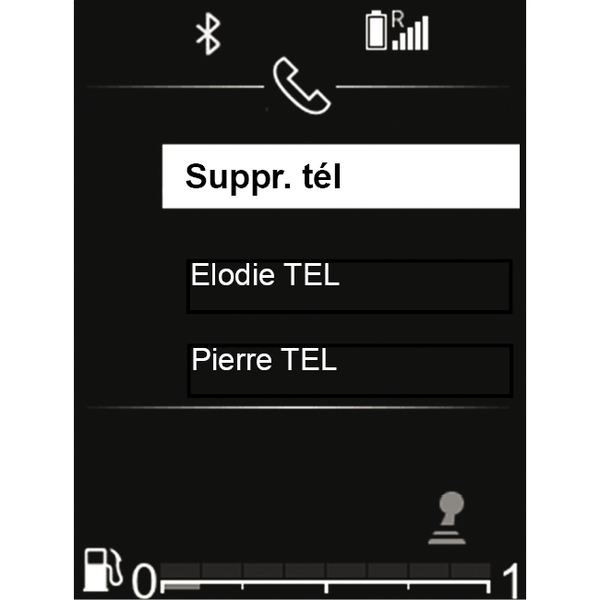
Unpairing allows a phone to be deleted from the audio system memory.
To unpair and delete your phone from the audio system memory, perform the following steps:
- press
to access the main menu;
- select the "Settings" world, then "Phone settings" followed by "Delete phone" by pressing
or
, then
to confirm;
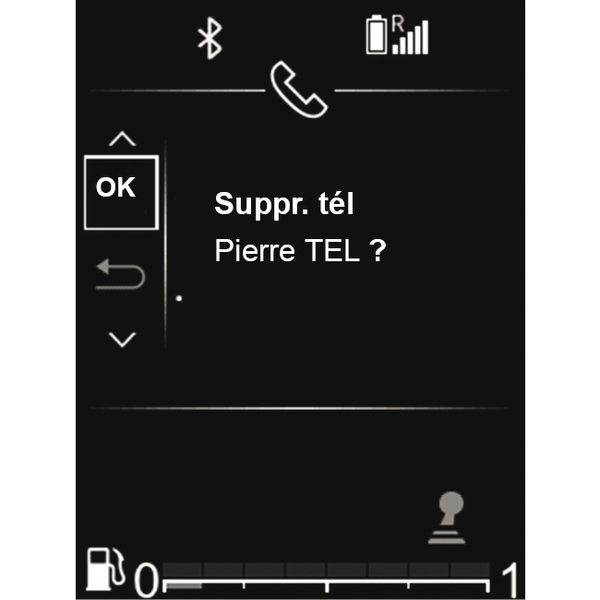
- select the phone that which you wish to unpair using or , then to confirm;
- select "YES" using or , then to confirm.
If six phones are already stored, the system offers to delete one of the devices. By selecting "YES", you will be redirected to the "Delete a phone" menu.
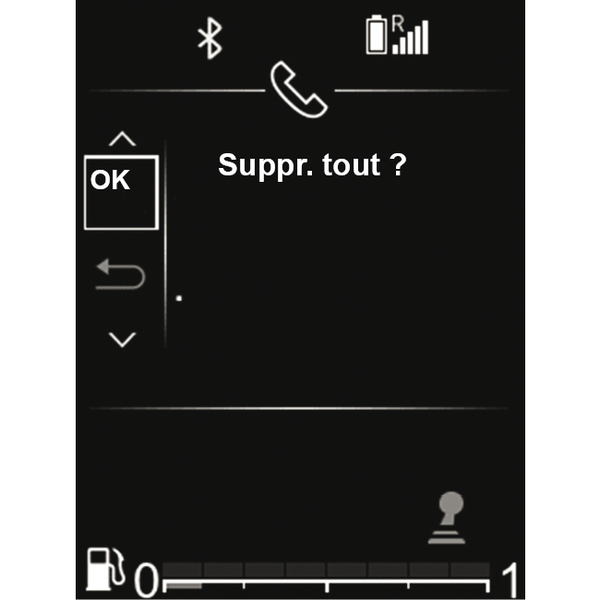
To unpair and delete all phones from the audio system memory:
- press
to access the main menu;
- select the "Settings" menu, then "Phone settings" followed by "Delete all" by pressing or then to confirm;
- select "YES" using or , then to confirm.
Note: all contacts in the phonebook and the call log in the synchronised audio system will be deleted.
warning
Your hands-free phone system is only intended to facilitate communication by reducing the risk factors, without removing them completely. Always comply with the laws of the country in which you are travelling.