Media Display & Media Nav Live (Gen 3)
warning
This function is an additional aid that displays the surroundings around your vehicle. It cannot, therefore, under any circumstances replace the vigilance or the responsibility of the driver.
The driver should always be ready for sudden incidents while driving: always ensure that there are no small, narrow moving obstacles (such as a child, animal, pushchair, bicycle, stone, post, etc.) in the blind spot when manoeuvring.
tip
The screen represents an inverted image of the rear views.
The gauges are a representation projected onto flat ground. This information must not be taken into account when superimposed on a vertical object or an object on the ground.
Objects which appear on the edge of the screen may be deformed.
In very bright light (snow, vehicle in sunshine, etc.), the camera vision may be adversely affected.
Introduction
The vehicle is fitted with four cameras fitted at the front, in the side door mirrors and at the rear of the vehicle to offer you additional aid during difficult manoeuvres.
The cameras transmit four separate views to the multimedia screen, enabling a view of the vehicle surroundings.
For further information, please refer to the "Multi-view camera" section in your Vehicle User Manual.
Note: make sure that the cameras are not obscured (by dirt, mud, snow, etc.).
Operation
When the reverse gear is engaged, the rear view camera displays the area behind the vehicle on the multimedia screen.
You also have the option of choosing the view to be displayed on the multimedia screen by changing to manual mode.
Camera choice
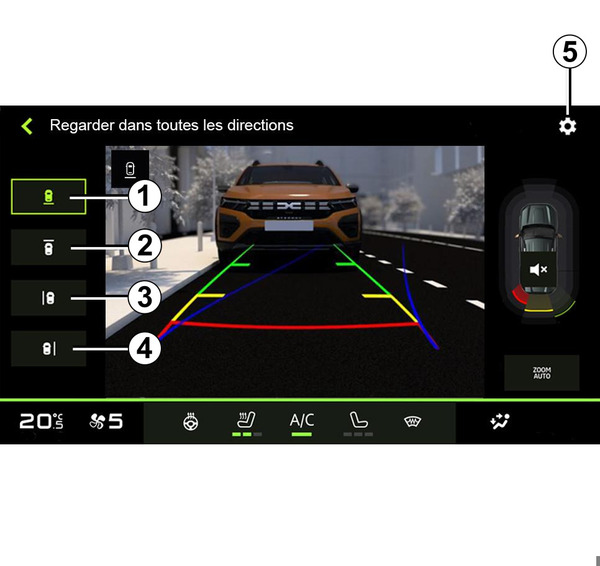
To activate the desired camera view, select it on the multimedia screen:
- 1 view of the area behind the vehicle;
- 2 view of the area in front of the vehicle;
- 3 view of the area to the left of the vehicle;
- 4 view of the area to the right of the vehicle.
Settings
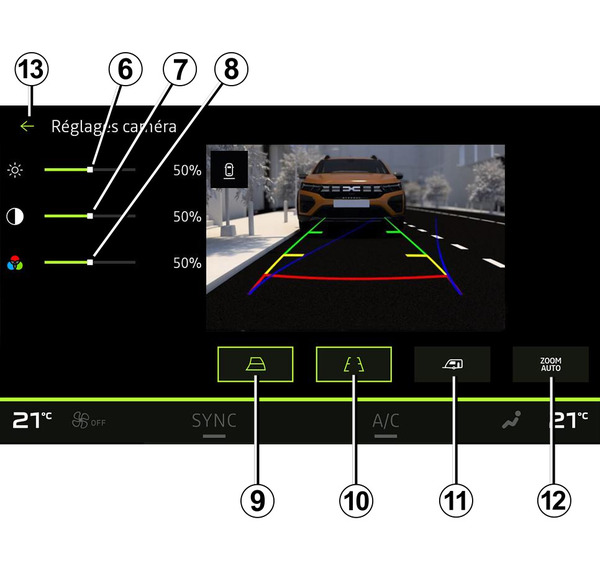
Press the "Settings" icon
 5 to display the list of settings.
You can adjust the brightness 6, contrast 7 and colour 8 settings.
You can activate or deactivate:
- the moving guide lines 9 indicating the vehicle's trajectory according to the steering wheel position;
- the fixed guide lines 10 indicating the distance behind the vehicle;
- the trailer's moving guide lines 11 indicating the trailer's trajectory according to the steering wheel position;
- the "Auto zoom" 12.
To exit the settings, press 13.