Media Control
Introduction
« Dacia Media Control " is an application that can be downloaded via your smartphone. The home page provides access to four worlds:
- "Audio (Radio/Multimedia)";
-« Navigation » ;
-« Vehicle » ;
-« Phone ».
Note: from all screens, you have permanent access to the settings and sound volumes.
Note: from the home page you can:
- access your shortcuts and favourites by swiping left;
- access your widgets by swiping right.
Display
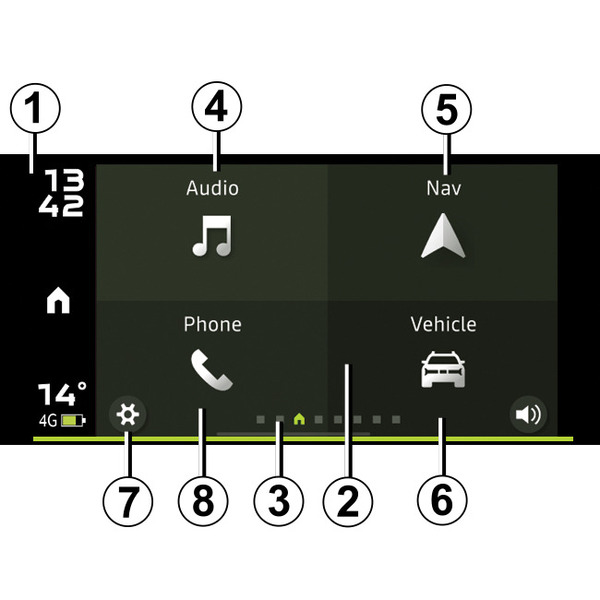
Home page
- 1.
Information area (time, connectivity, exterior temperature);
- 2.
Home page;
- 3.
Page indicators;
- 4.
"Audio": manage the radio source (radio or media);
- 5.
"Navigation": manage navigation;
- 6.
"Vehicle": manage your fuel consumption, Eco-driving, etc.
- 7.
"Settings": manage the "Dacia Media Control" app settings;
- 8.
"Phone": manage the phone functions.
Connection
Check that your telephone is paired to the Pairing a phone audio system.
Note: your phone's Bluetooth® must be activated and set to "visible" (for more information, see the user manual for your device).
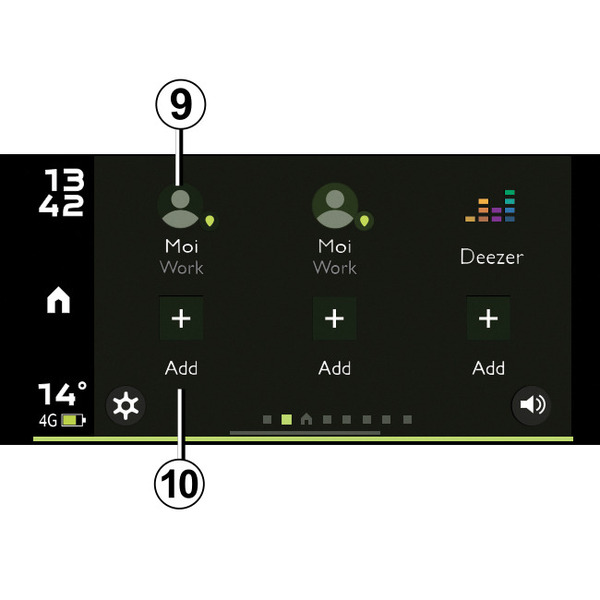
Favourites screen
Use the "Dacia Media Control" app to add shortcuts to your favourite functions:
- apps;
- contacts (addresses, phone, etc.).
- 9.
access a function previously designated as a favourite;
- 10.
add a favourite.
Managing favourites
To manage your favourites, press the button 10 to add one to an empty slot, or press and hold a favourite. You will be able to add or delete one.
tip
We recommend that you keep your "Dacia Media Control" app updated.
tip
Your hands-free system is intended to facilitate communication by reducing risk factors, but does not remove them completely.
Always comply with the laws of the country in which you are travelling.
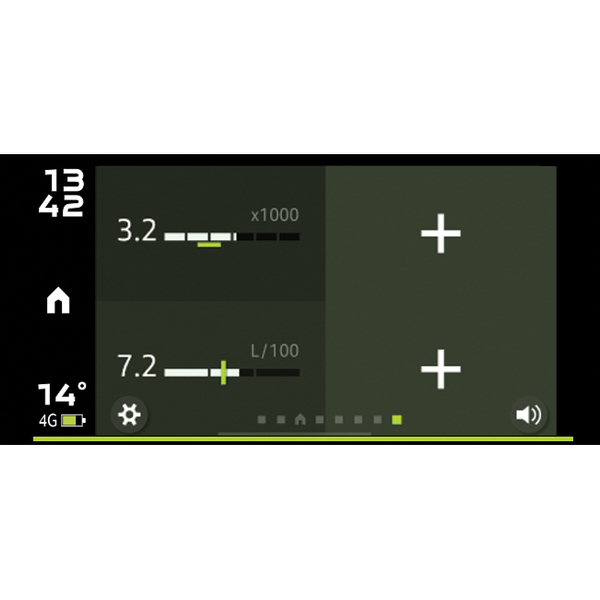
Widget screens
The widget screens allow you to view a summary of the various Dacia Media Control functions that are available. The display of widgets can be customised:
- Audio Player (media/radio);
- Eco-driving;
- Consumption;
- ...
Manage widgets
To manage your widgets, press and hold a widget to configure it or press the + button to add one.
You will be able to move it or change its size. You can open the list of available widgets by tapping on an empty slot.
To delete a widget, press and hold it. A bin will appear at the bottom of the screen and you will be able to move the app into this bin. The widget will be deleted.
"Audio world (radio/media)"
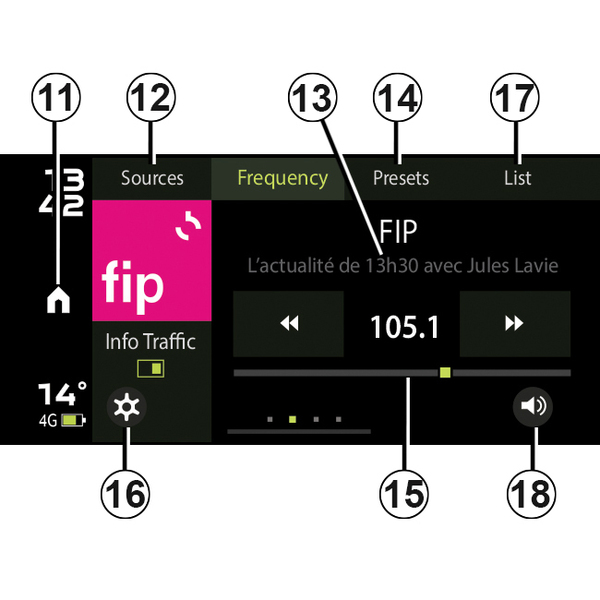
This world can be used to listen to radio stations and music from other media (music from your phone, Jack), USB port or audio/podcast apps. The content may vary according to your phone, car and country.
For the radio, the main functions are as follows:
- 11.
return to the main menu;
- 12.
choose a radio band (FM, DR or AM) or another audio source;
- 13.
see the currently playing radio station;
- 14.
select radio presets/favourites.
Note: the " Dacia Media Control " app recalls the vehicle radio presets/favourites.
- 15.
radio frequency band, radio frequency information;
- 16.
access to the settings;
- 17.
list of available stations;
- 18.
manage the volume.
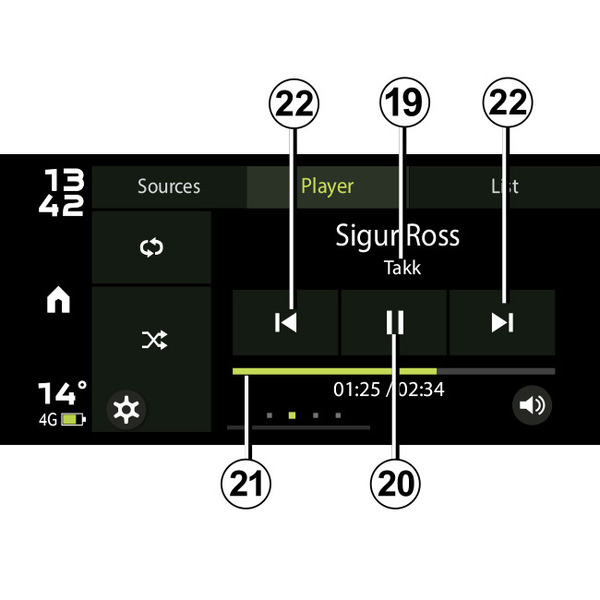
For the media player, the main functions are as follows:
- 19.
see the multimedia file currently playing;
- 20.
play/pause;
- 21.
scroll bar, remaining time for the multimedia file currently playing;
- 22.
next/previous file.
"Navigation world"
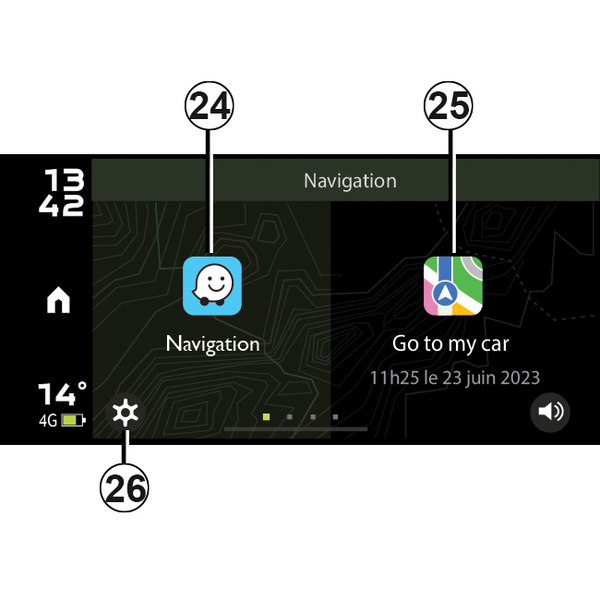
The "Navigation world" menu provides the following functions:
- 24.
smartphone navigation app for planning your journeys;
- 25.
app enabling you to geolocate your vehicle;
- 26.
access to the settings.
"Vehicle world"
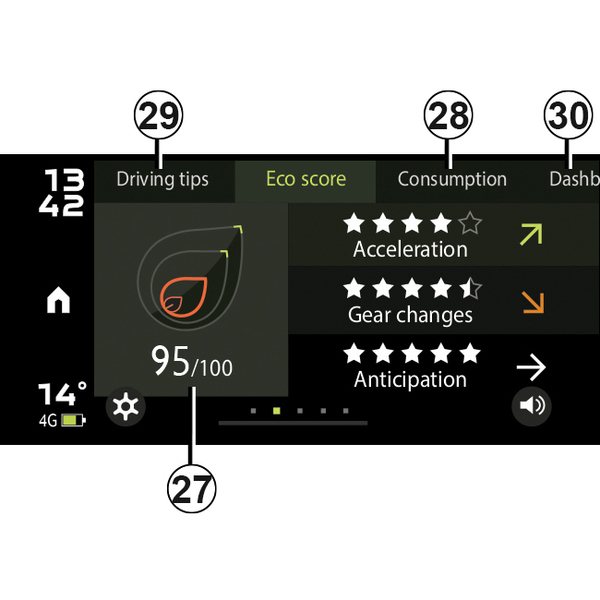
The "Vehicle world" can be used to manage some equipment, such as the Eco-driving and trip computer. It provides the following functions:
- 27.
Eco-driving;
- 28.
average and current fuel consumption indicators;
- 29.
access to driving advice (coaching);
- 30.
access to:
- your vehicle instrument panel;
- tyre pressure monitoring system.
"Phone world"
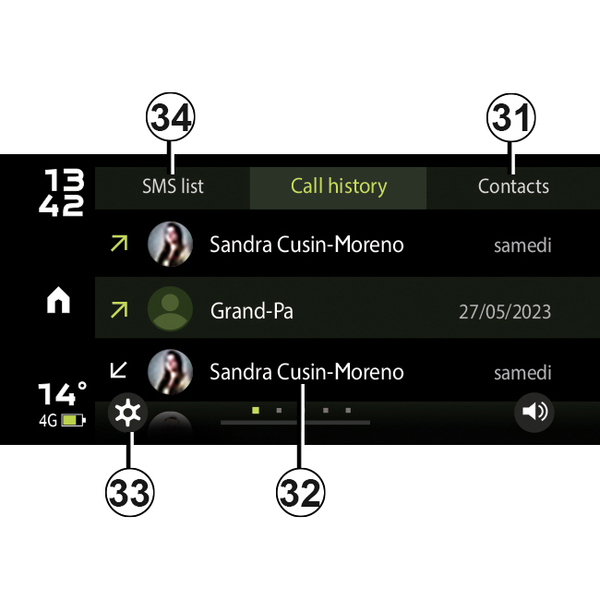
The "Phone world" enables hands-free use of your telephone and provides the following functions:
- 31.
access your phonebook;
- 32.
access your call log;
- 33.
access to the settings;
- 34.
access to your SMS.
Forgotten phone reminder
With the engine off and the audio system off, the " Dacia Media Control " app displays a warning message on your smartphone screen along with a beep to inform you that you have left your phone in your vehicle.
Note: on some phones, the "Text-to-speech" function can be used to listen to messages. The audio system reads the messages aloud.
Telephone holder
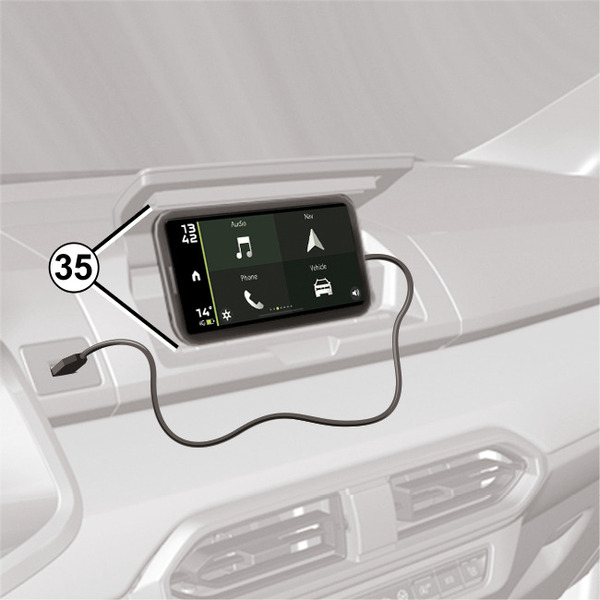
Depending on the equipment, while using the " Dacia Media Control " app your phone can be attached to the centre console thanks to its ergonomic shape 35.
Charging using the USB port
By connecting your telephone's USB plug to the USB port, you can charge your battery or keep it charged during use.
Adjusting the audio volume
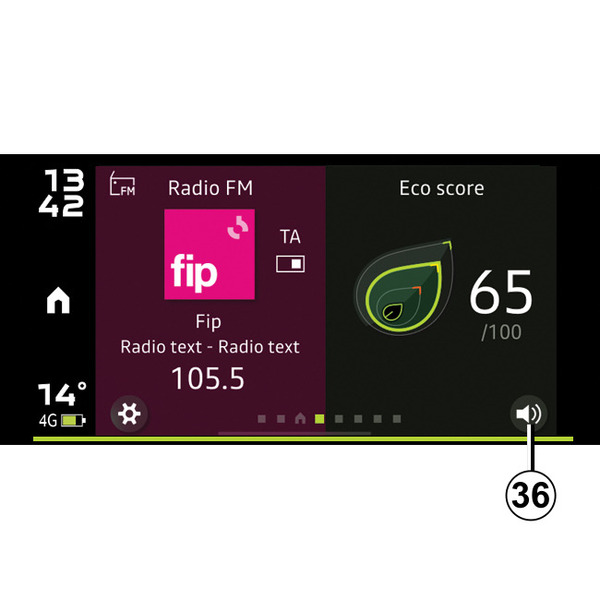
The volume can be adjusted by pressing the button 36 on the screen and then swiping vertically:
-swipe upwards to increase the volume,
-swipe downwards to decrease the volume.
Several sweeps may be required to reach the desired volume.
tip
We recommend that you keep your "Dacia Media Control" app updated.