Media Control
"Navigation world"
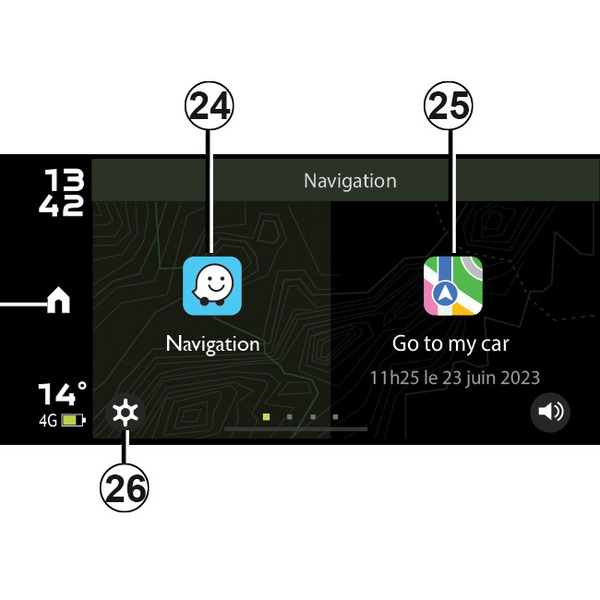
To access the "Navigation world" from the "Dacia Media Control" app home page, press the "Navigation" button.
The "Navigation world" consists of:
- 11.
return to the home page;
- 24.
access the navigation app to manage your routes;
- 25.
access the "Go To My Car" app to find your vehicle;
- 26.
Accessing settings
This feature allows you to launch your smartphone's navigation app.
Note: to hear the navigation application instructions on the vehicle speakers, select the Bluetooth® audio source.
For more information, see Pairing/unpairing a phone.
warning
For safety reasons, carry out any adjustments while the vehicle is stationary.
"Find my vehicle" ( Go To My Car )
This function allows you to see your vehicle's last recorded position, for example if you need to find it in a car park.
From the "Navigation" world, press 25 "Go To My Car".
To find your vehicle, press the "Go to my car" button to launch navigation to the pre-set address in pedestrian mode.
Note: this feature can only be used when not in the vehicle. If your vehicle has been moved by a third party between the time of saving its GPS position and the time you wish to find it, the application cannot search for its current position.
"Navigation settings"
This function allows you to set your chosen default navigation application.
In the " Dacia Media Control " app settings menu, which you can access using button 25, you can define the default navigation app by selecting it from the list of suggestions.
You can also define the navigation app to be used for the "Find my vehicle" function (Go To My Car).
tip
When you use your smartphone's navigation app, the transfer of cellular data required for it to operate may lead to additional costs not covered by your phone plan.
warning
For safety reasons, carry out any adjustments while the vehicle is stationary.